Apple Account Contact Information
apple-account-contact-information
Essential
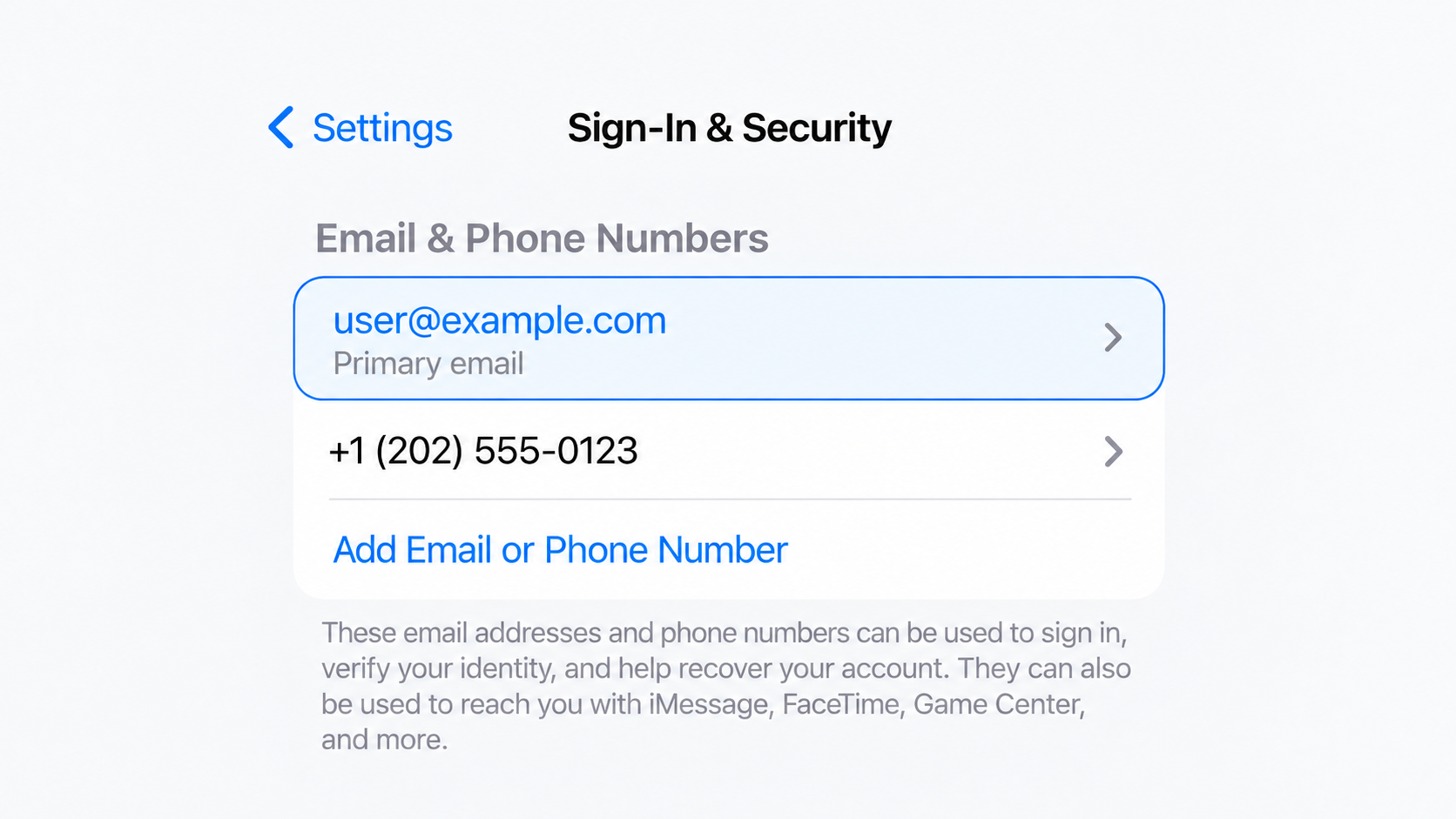
Do you recognize and still control all email addresses and phone numbers associated with your Apple Account?
Settings → [your name] → Sign-In & Security
1
The email addresses and phone numbers associated with your Apple Account are part of your account identity and security. Apple allows the email addresses and phone numbers on file to be used to sign in to your account, while trusted phone numbers can receive verification codes for two-factor authentication. Keeping this information accurate helps ensure that only contact methods you recognize and control remain associated with your account.
Two-Factor Authentication
two-factor-authentication
Essential
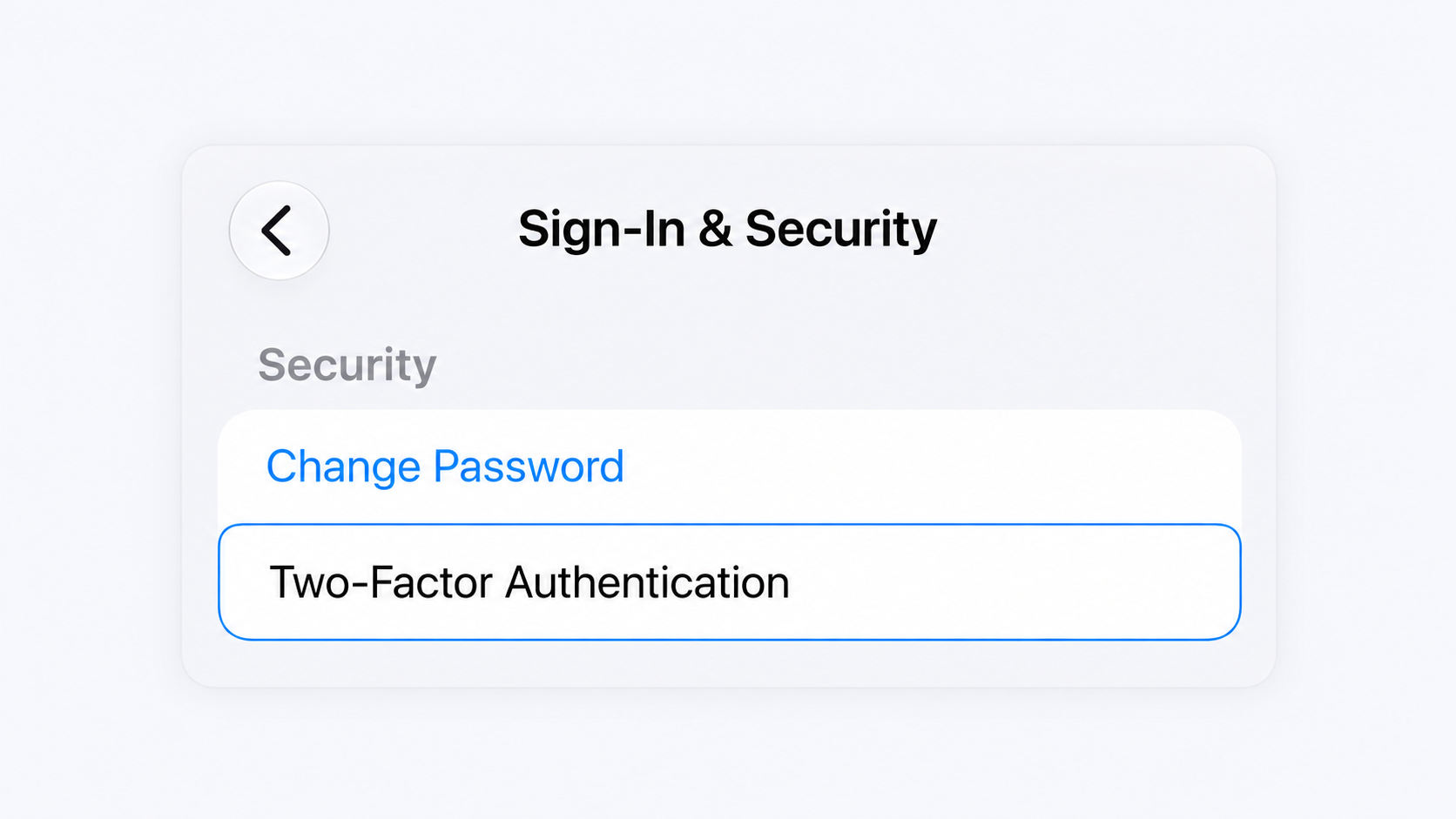
Is two-factor authentication turned on for your Apple Account?
Settings → [your name] → Sign-In & Security → Two-Factor Authentication
2
Two-factor authentication adds a second layer of protection to your Apple Account. Even if someone obtains your password, they still need a verification code from one of your trusted devices or trusted phone numbers before they can sign in on a new device or on the web. Apple describes two-factor authentication as the default security method for most Apple Accounts.
Review Trusted Devices
review-trusted-devices
Essential
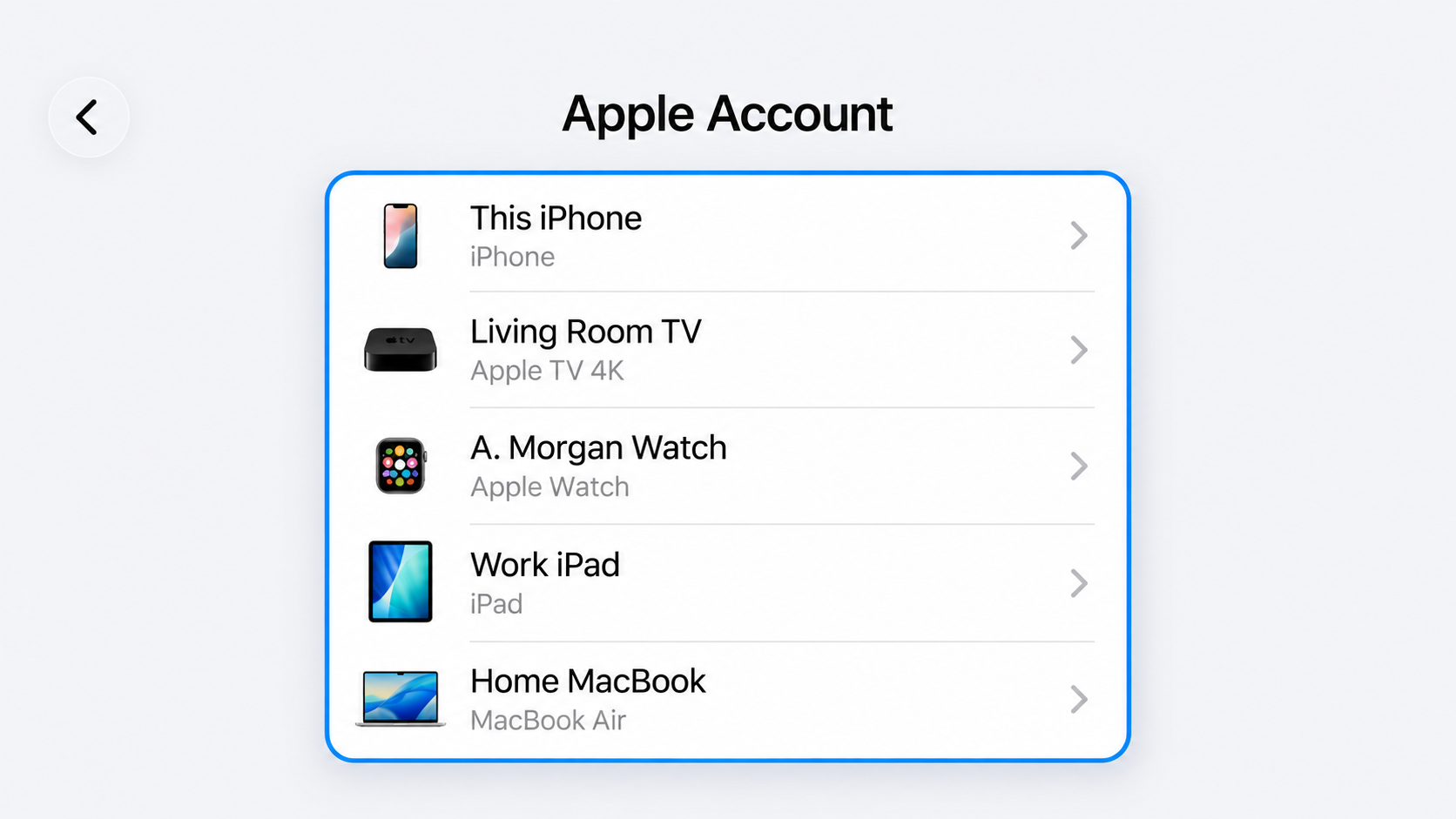
Do you recognize and still control every device shown in your Apple Account device list?
Settings → [your name]
3
Devices signed in to your Apple Account can access Apple services and may have access to iCloud data. Trusted devices can also display verification codes for two-factor authentication. Reviewing the device list helps identify devices that should no longer have access to your account.
iOS 27 introduces iPhone Handoff, which can allow two iPhones signed in to the same Apple Account to share a phone number and synced iCloud data. If you use iPhone Handoff, make sure both iPhones are devices you recognize, control, and still intend to have associated with your account.
Strong, Unique Apple Account Password
strong-unique-apple-account-password
Essential
Is your Apple Account password strong and unique to this account?
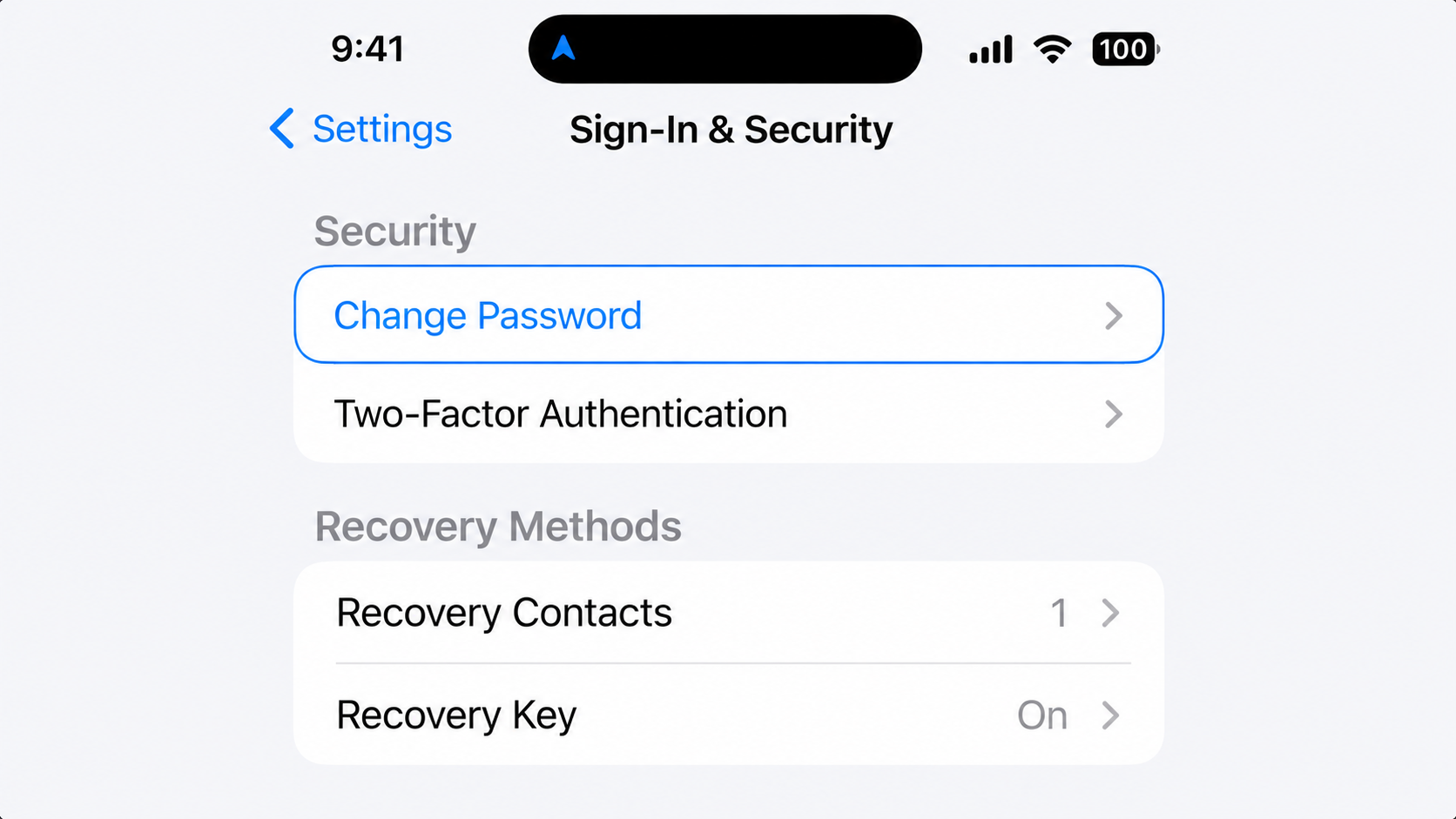
Settings → [your name] → Sign-In & Security → Change Password
4
Your Apple Account password is the primary credential protecting access to your account. Two-factor authentication adds an important second layer, but a strong, unique password still reduces the risk that credentials stolen or exposed through another service can be used against your Apple Account. Apple specifically recommends using a strong and unique password for the account.
Security Keys
security-keys
Optional
Do you use physical security keys to protect your Apple Account?
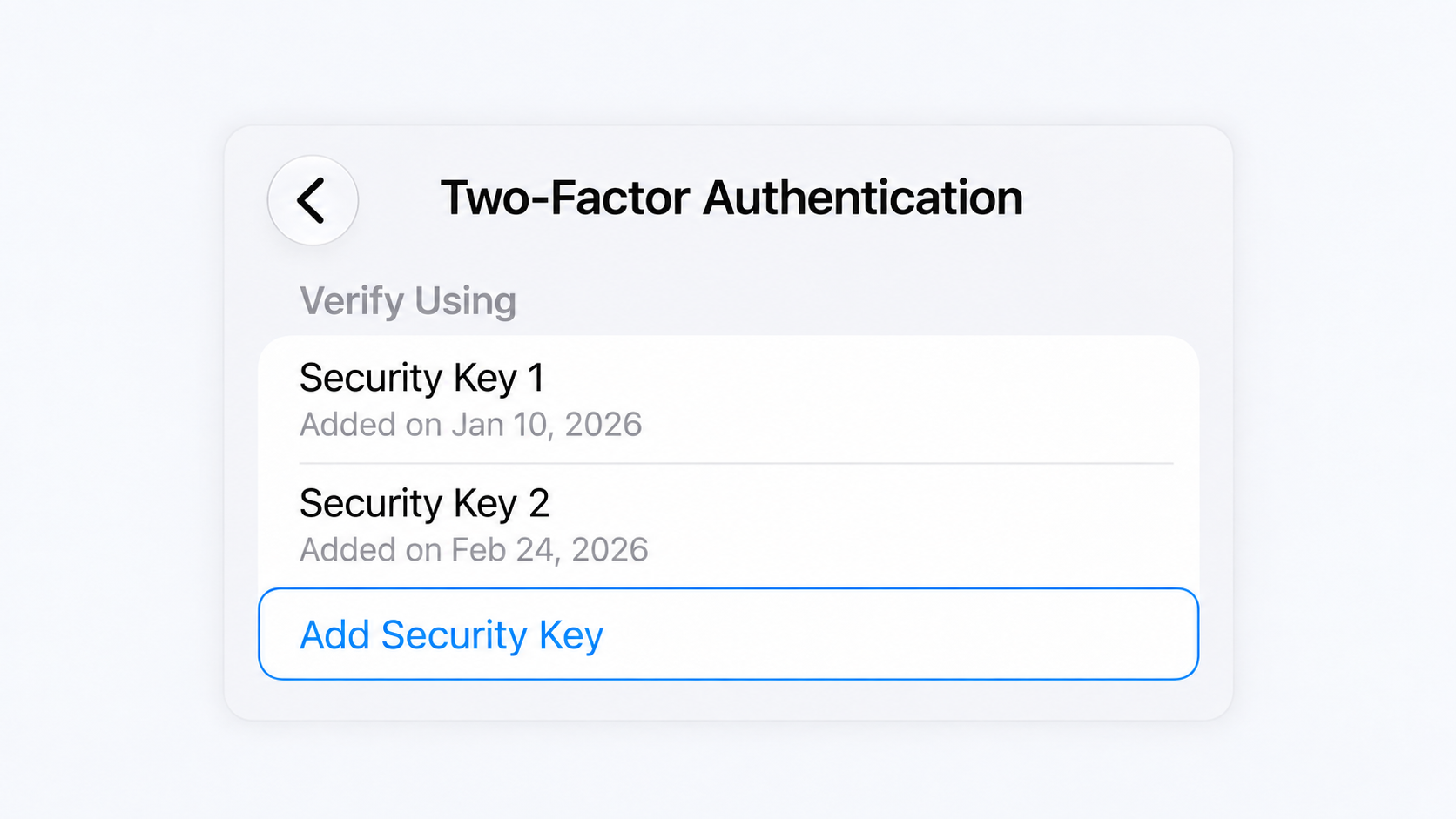
Settings → [your name] → Sign-In & Security → Two-Factor Authentication → Security Keys
5
Security Keys replace the six-digit verification codes normally used for Apple Account two-factor authentication with physical FIDO-certified security keys. This makes it much harder for an attacker to steal or trick you into providing your second authentication factor through phishing or social engineering.
Recovery Contacts
recovery-contacts
Recommended
Have you set up at least one trusted Recovery Contact?
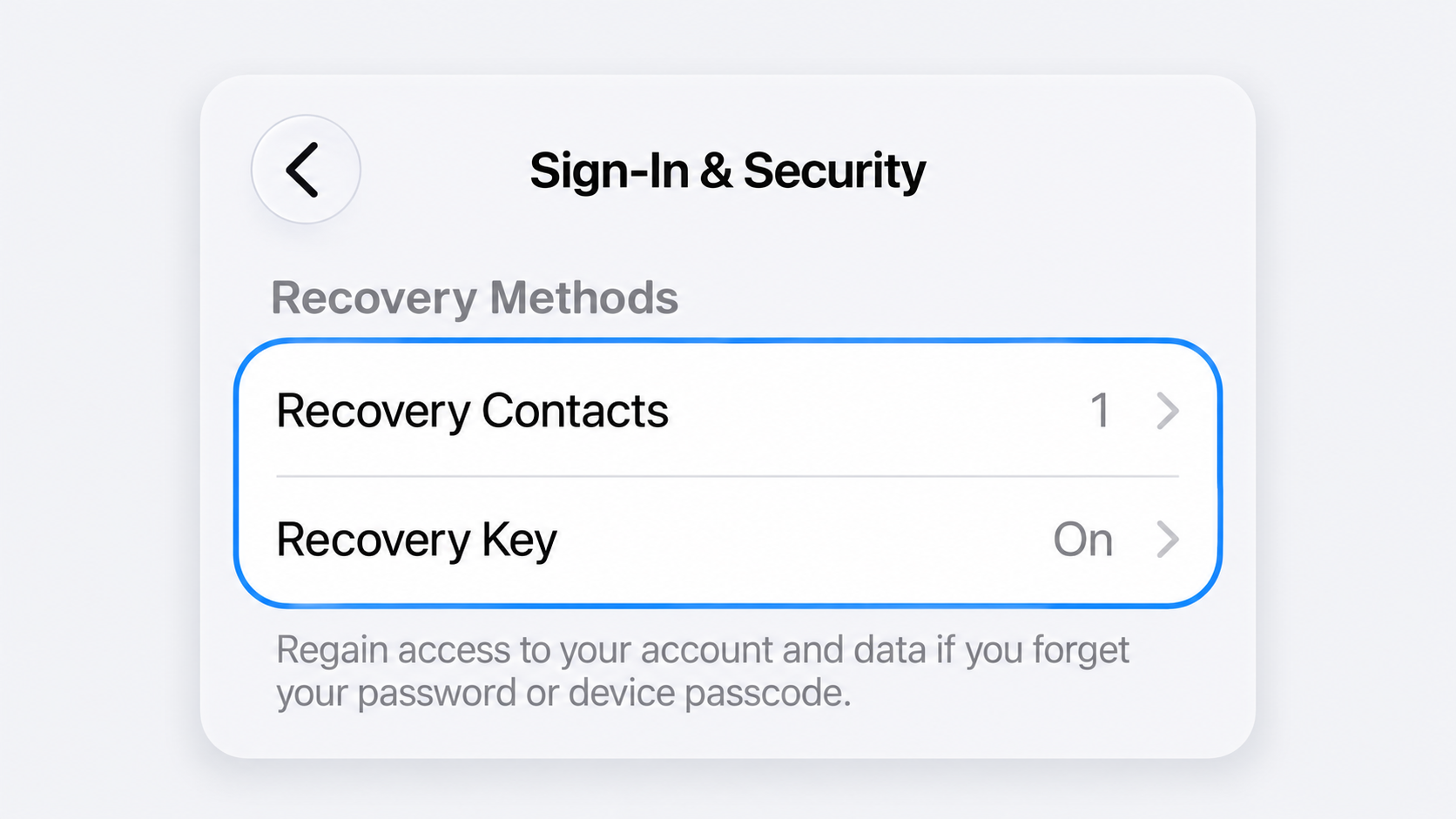
Settings → [your name] → Sign-In & Security → Recovery Contacts
6
A recovery contact can help you regain access to your Apple Account if you forget your password or device passcode, or otherwise become locked out. Your recovery contact can generate a recovery code that allows you to reset your Apple Account password, but they do not have access to your account or your iCloud data.
Recovery Key
recovery-key
Optional
Do you use a Recovery Key for your Apple Account?
Settings → [your name] → Sign-In & Security → Recovery Key
7
A Recovery Key is a unique 28-character code that gives you greater control over recovering your Apple Account. When enabled, it replaces Apple’s standard account-recovery process and can help prevent an attacker from using that process to take control of your account.
Advanced Data Protection
advanced-data-protection
Recommended
Is Advanced Data Protection turned on for iCloud?
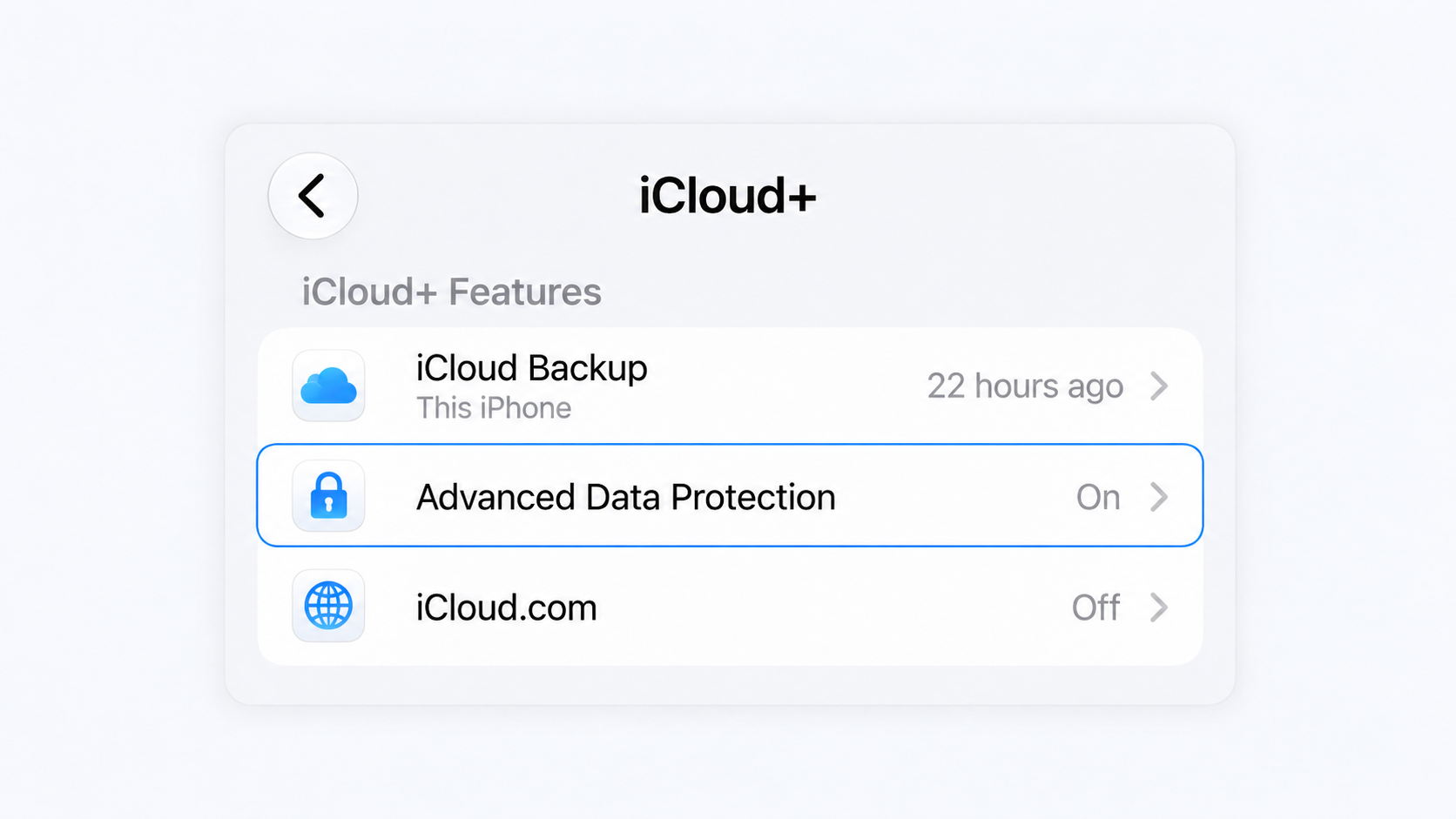
Settings → [your name] → iCloud → Advanced Data Protection
8
Advanced Data Protection provides Apple’s highest level of cloud data security by extending end-to-end encryption to additional categories of iCloud data, including iCloud Backup, Photos, Notes, and iCloud Drive. Protected data can be decrypted only on your trusted devices, so it remains protected even if Apple’s cloud systems are breached. Apple does not hold the encryption keys needed to access this protected data.
Access iCloud Data on the Web
access-icloud-data-on-the-web
Recommended
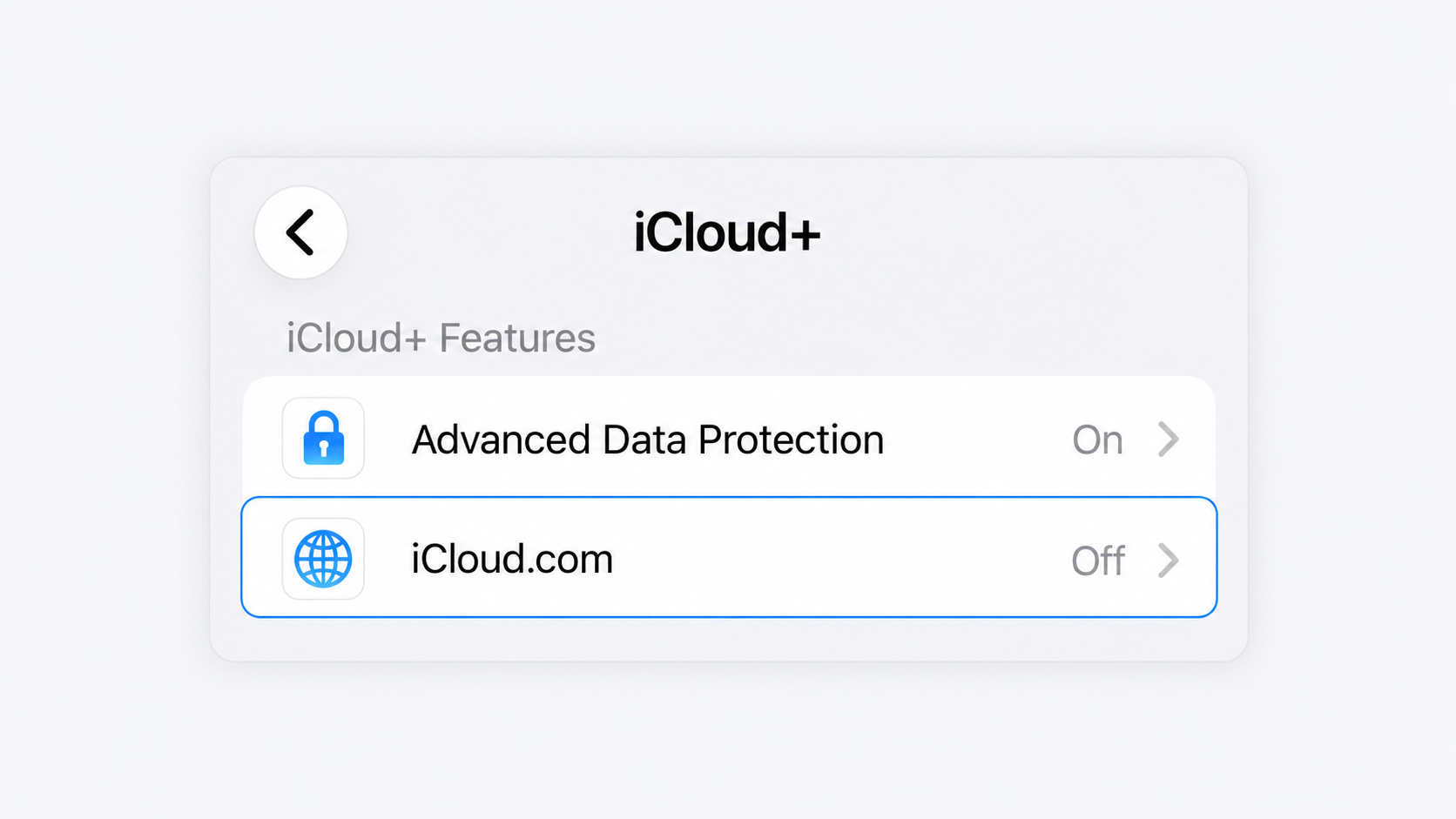
Is access to your iCloud data on the web turned off, or intentionally enabled because you use iCloud.com?
Settings → [your name] → iCloud → iCloud.com → Allow Data Access
9
Turning off web access limits iCloud data such as Mail, Contacts, Calendar, Photos, Notes, Reminders, files, and documents to your trusted devices. This removes the browser as a direct route to that data and means someone attempting to access it must instead gain access through a trusted device.
Safety Check
safety-check
Recommended
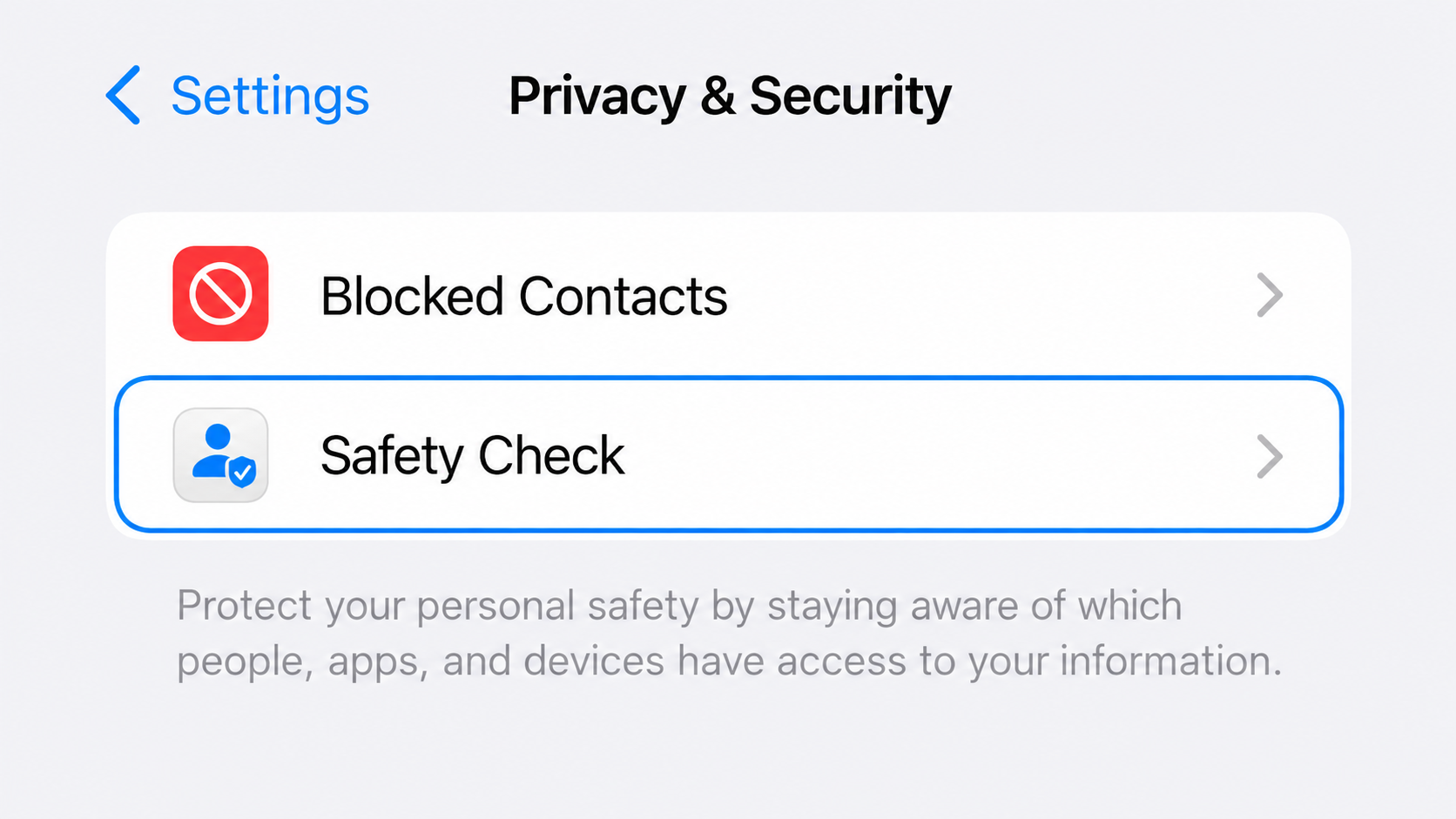
Have you reviewed Safety Check and confirmed that the people, apps, and devices with access are ones you trust?
Settings → Privacy & Security → Safety Check
10
Safety Check provides one place to review and remove unwanted access to information associated with your iPhone and Apple Account. It can help you stop sharing with people and apps, review devices connected to your Apple Account, review trusted phone numbers, and change your Apple Account password or iPhone passcode.
Strong Device Passcode
strong-device-passcode
Essential
Is your iPhone protected by a strong, unique passcode that no one else knows?
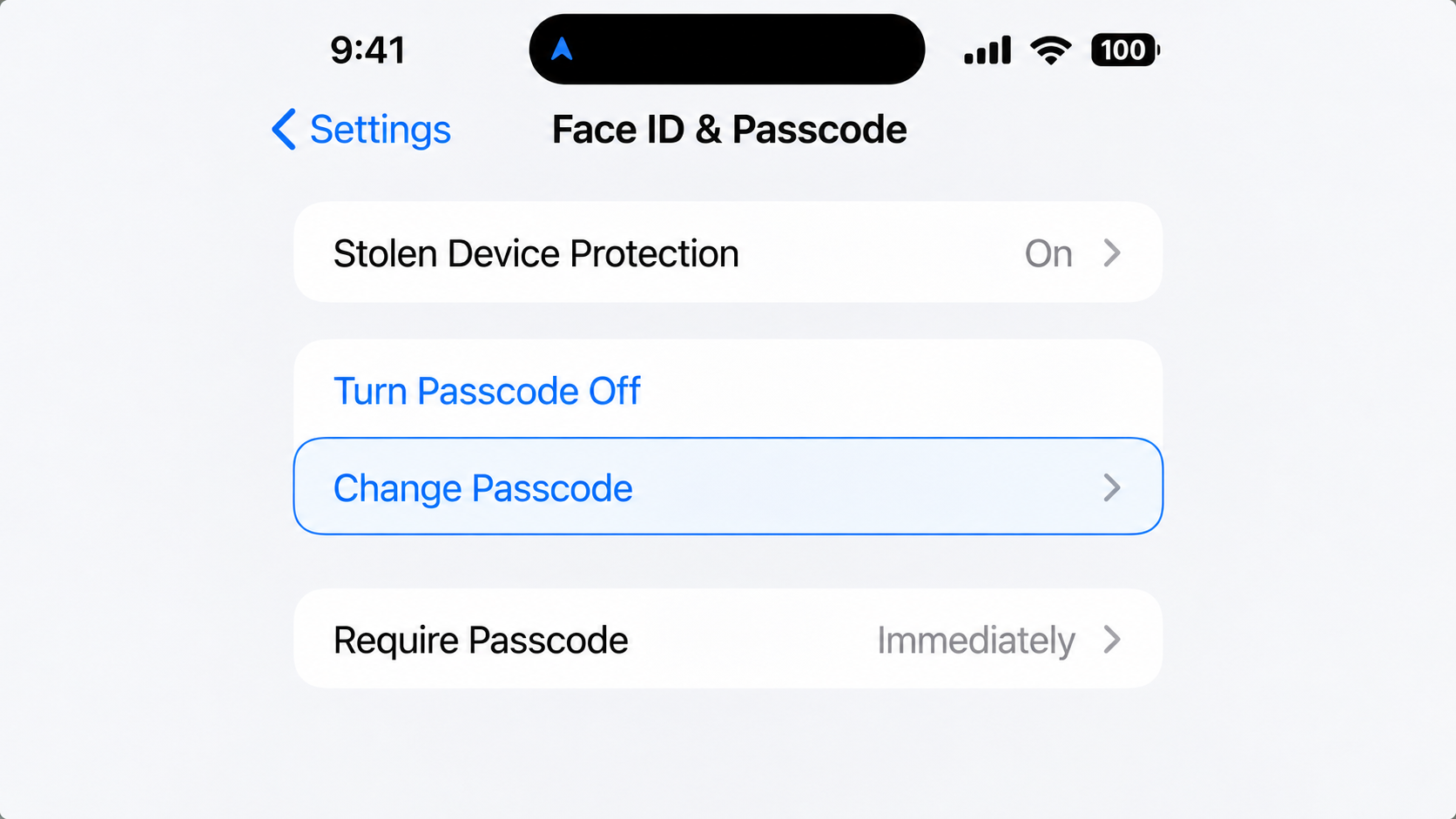
Settings → Face ID & Passcode → Change Passcode → Passcode Options
11
Your iPhone passcode protects access to the device and the information stored on it. Setting a passcode also enables iPhone Data Protection, which encrypts device data. Because an unlocked iPhone is also a trusted device for your Apple Account, keeping the passcode secret is an important part of protecting both the device and your account.
Find My iPhone
find-my-iphone
Essential
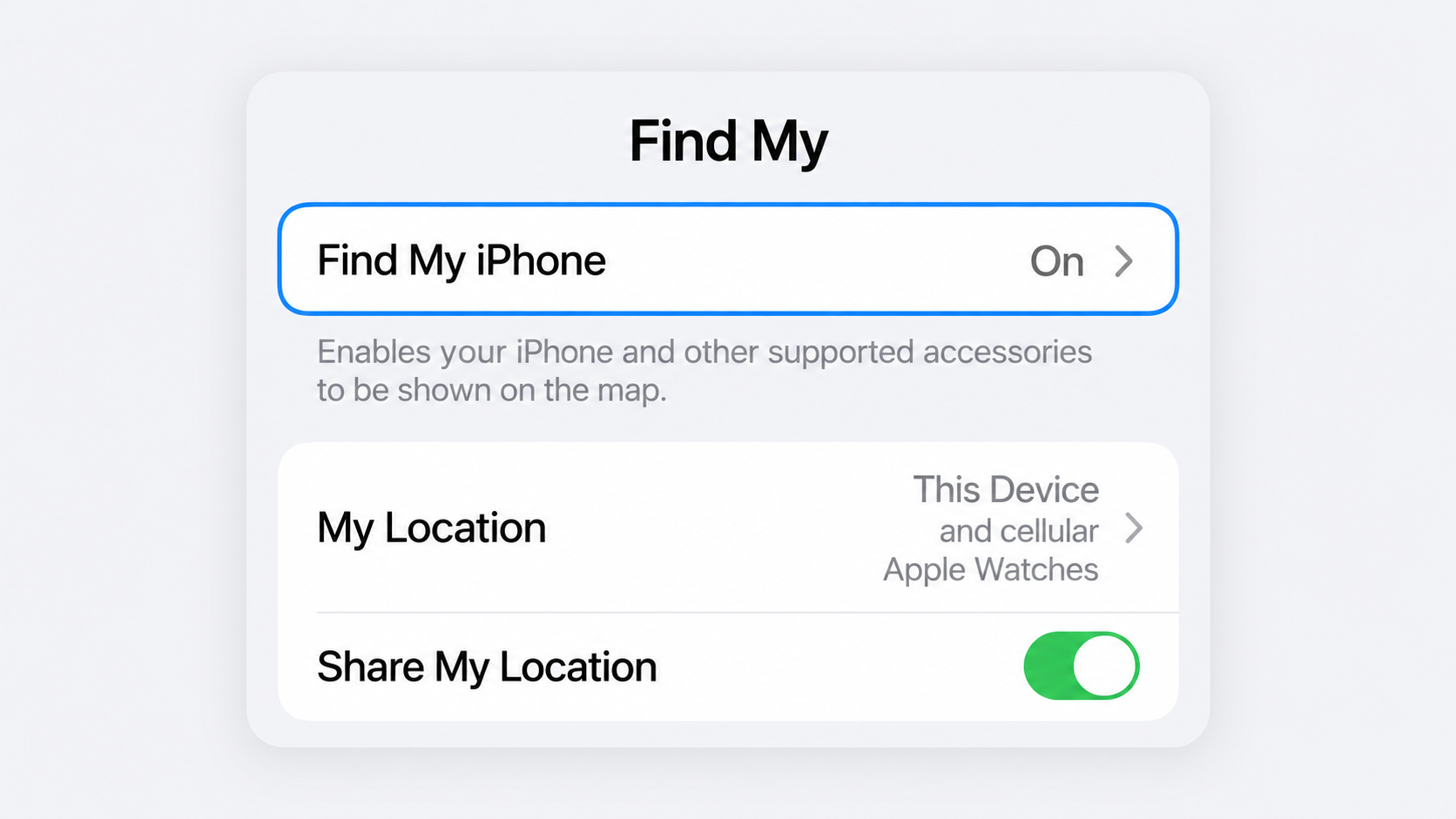
Are Find My iPhone, Find My network, and Send Last Location turned on?
Settings → [your name] → Find My → Find My iPhone
12
Find My iPhone helps you locate, lock, or remotely erase a lost or stolen iPhone. Turning it on also enables Activation Lock, which prevents someone else from activating and using the device without your Apple Account credentials, even after the iPhone has been erased.
Stolen Device Protection
stolen-device-protection
Essential
Is Stolen Device Protection turned on?
Settings → Face ID & Passcode → Stolen Device Protection
13
Stolen Device Protection helps prevent someone who has stolen your iPhone and knows its passcode from taking over your Apple Account or making critical security changes. For sensitive actions, it requires Face ID or Touch ID with no passcode fallback, and some account changes also require a Security Delay before they can be completed.
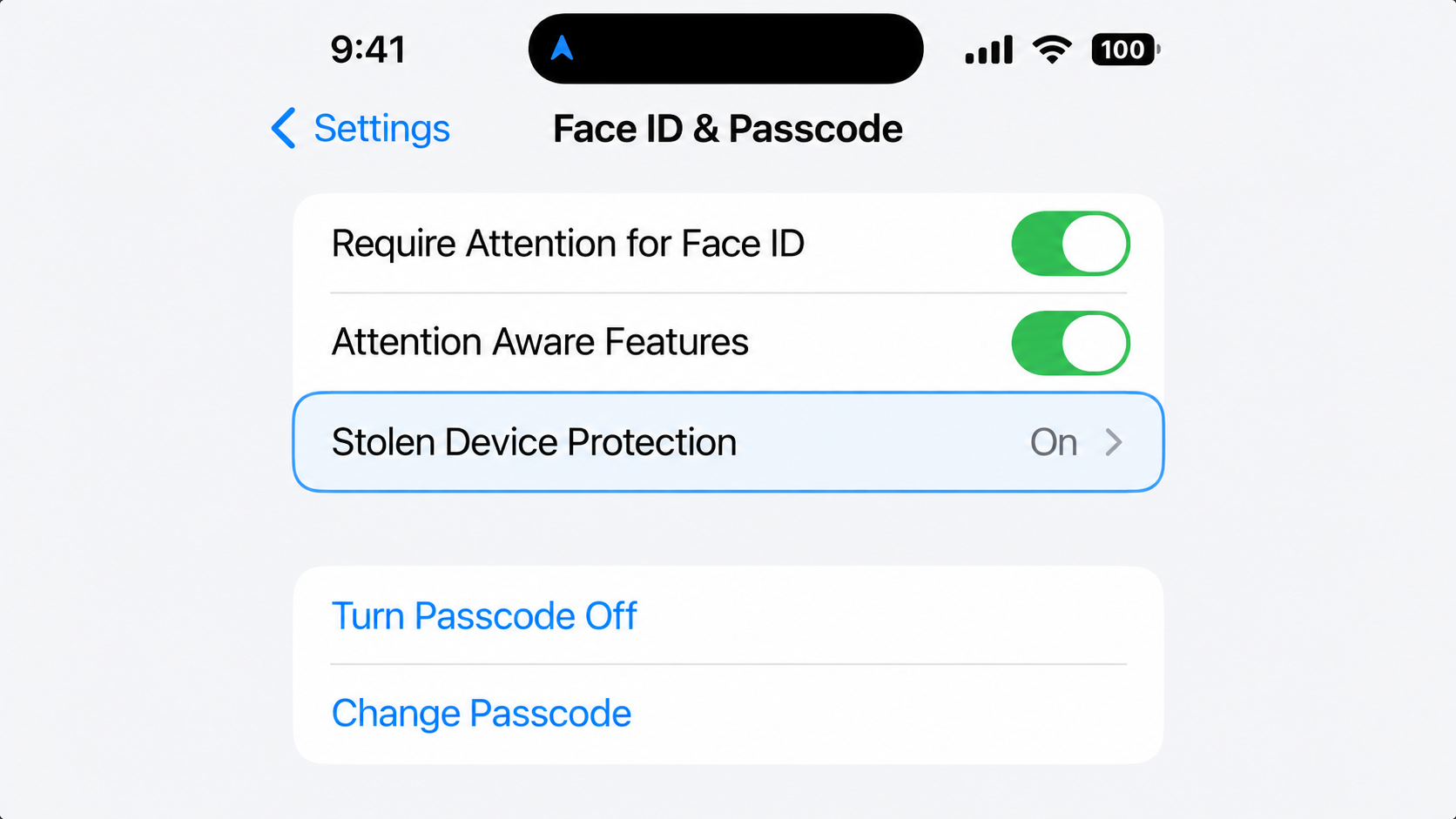
Require Attention for Face ID
require-attention-for-face-id
Recommended
Is Require Attention for Face ID turned on, unless you need it off for accessibility?
Settings → Face ID & Passcode → Require Attention for Face ID
14
Require Attention for Face ID adds an additional layer of biometric security by requiring your eyes to be open and looking at the iPhone before Face ID will unlock it. This makes it harder for someone to authenticate with your face when you are not actively looking at the device. Apple specifically notes that requiring attention makes Face ID more secure.
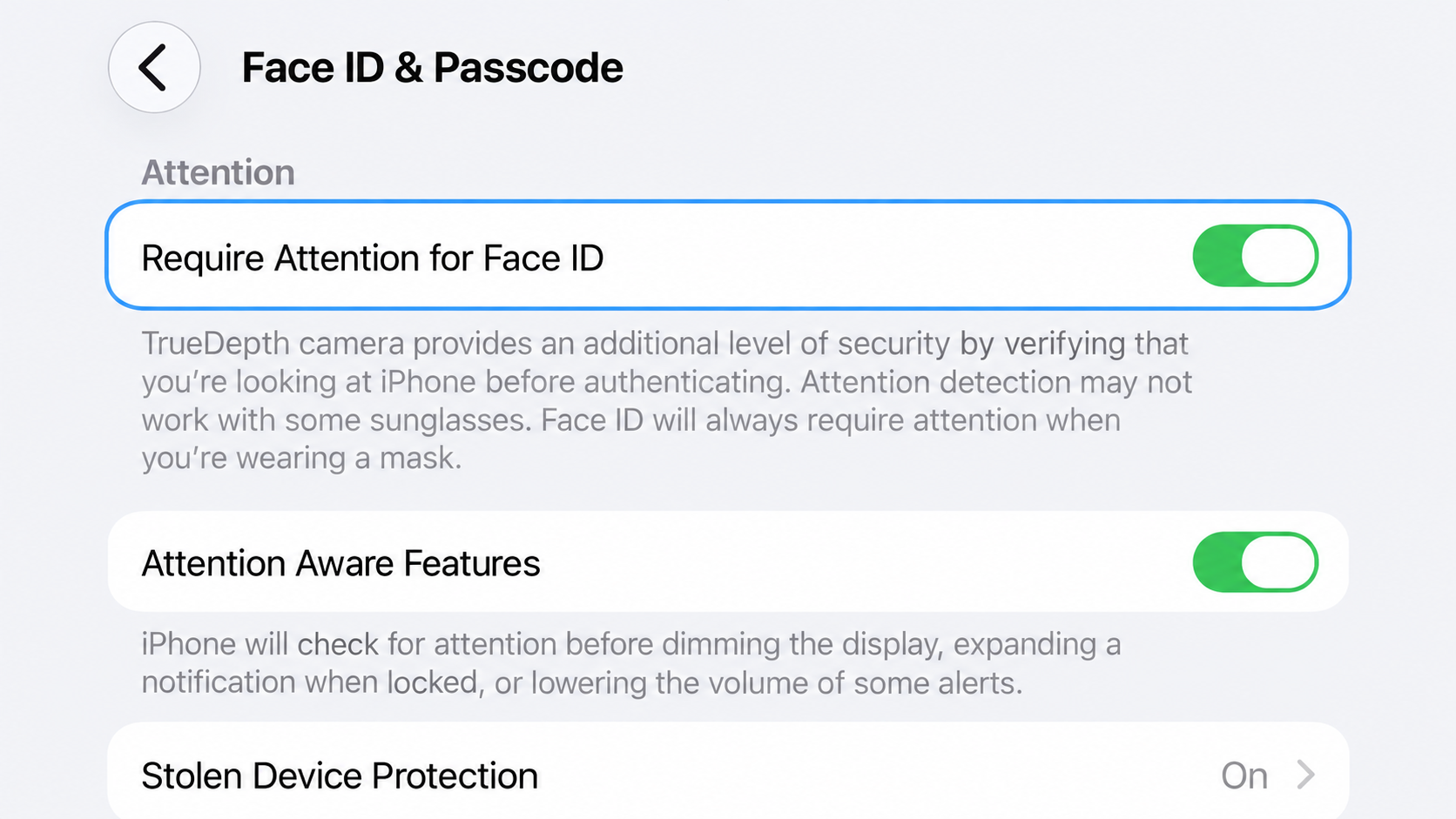
Erase Data After 10 Failed Attempts
erase-data-after-10-failed-attempts
Optional
Is Erase Data after 10 failed passcode attempts turned on?
Settings → Face ID & Passcode → Erase Data
15
Erase Data automatically removes the information, media, and personal settings on your iPhone after 10 consecutive failed passcode attempts. This can reduce the value of continued physical attempts to gain access to a stolen or seized device.
Wired Accessories
wired-accessories
Recommended
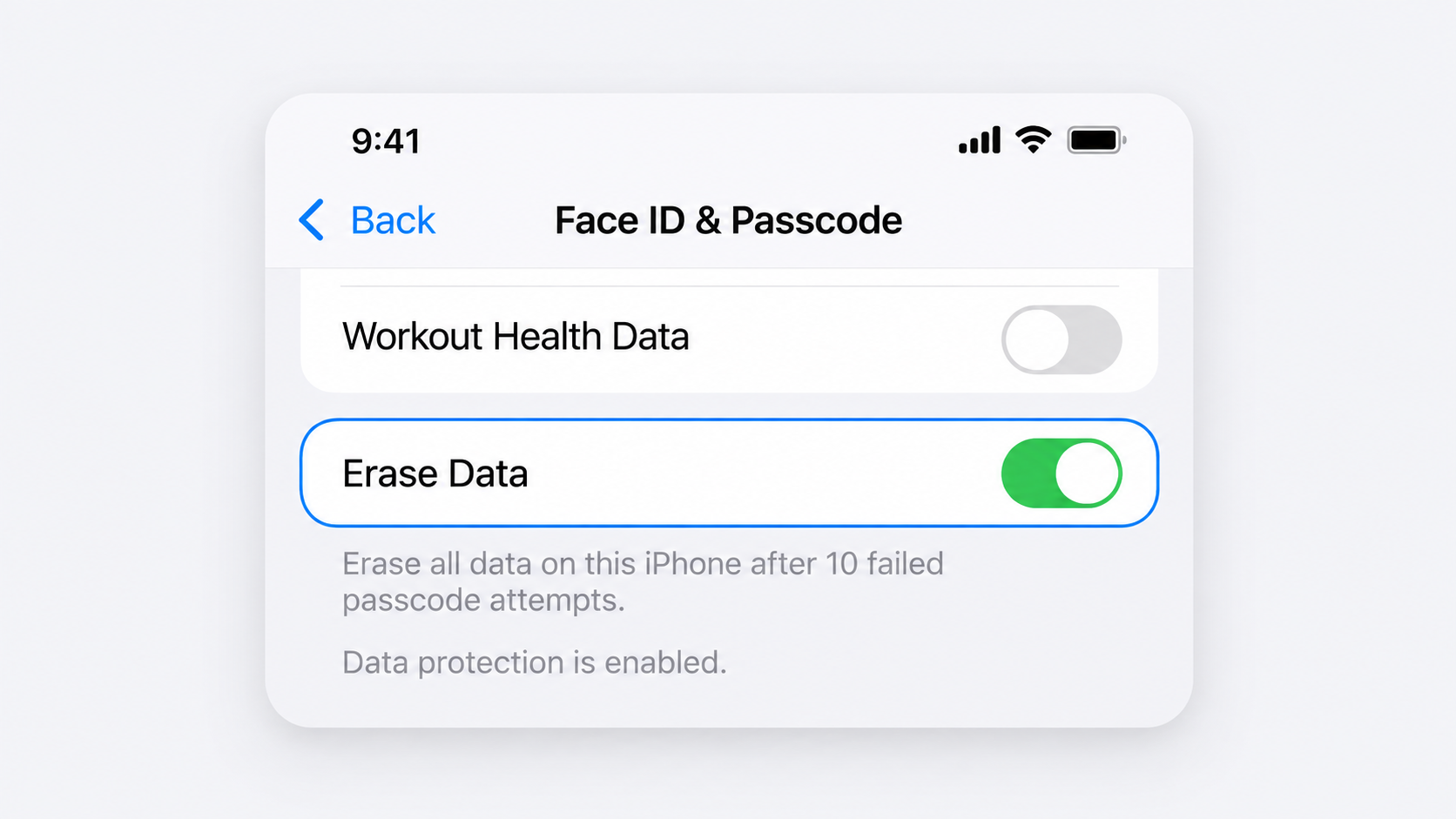
Is your iPhone configured to require approval before a new wired accessory can communicate with it?
Settings → Privacy & Security → Wired Accessories
16
Wired Accessories controls whether USB, Thunderbolt, and other compatible accessories can communicate with your iPhone. Restricting those connections while the device is locked reduces the opportunities available to someone who has physical possession of your iPhone and attempts to connect external hardware to it. Apple requires the device to be unlocked before accessories can communicate by default.
Configuration Profiles & Device Management
configuration-profiles-device-management
Recommended
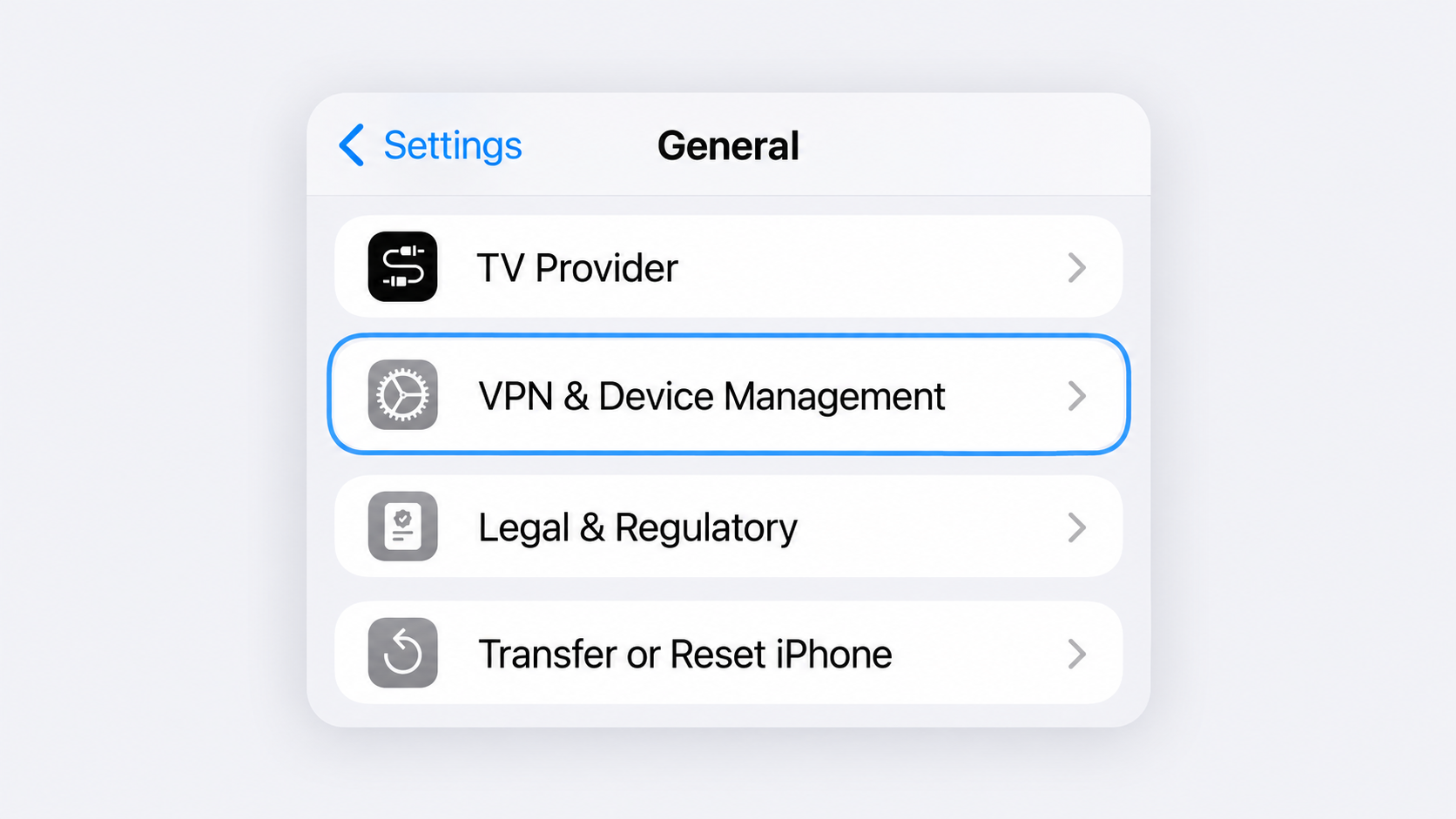
Have you reviewed your configuration profiles and device management settings and confirmed that you recognize and trust everything shown?
Settings → General → VPN & Device Management
17
Configuration profiles and mobile device management can control important settings on an iPhone and may provide an organization with access to device information, network settings, accounts, certificates, apps, or other managed capabilities. An unknown or unwanted profile can therefore create a significant security concern.
Automatic Software Updates
automatic-software-updates
Essential
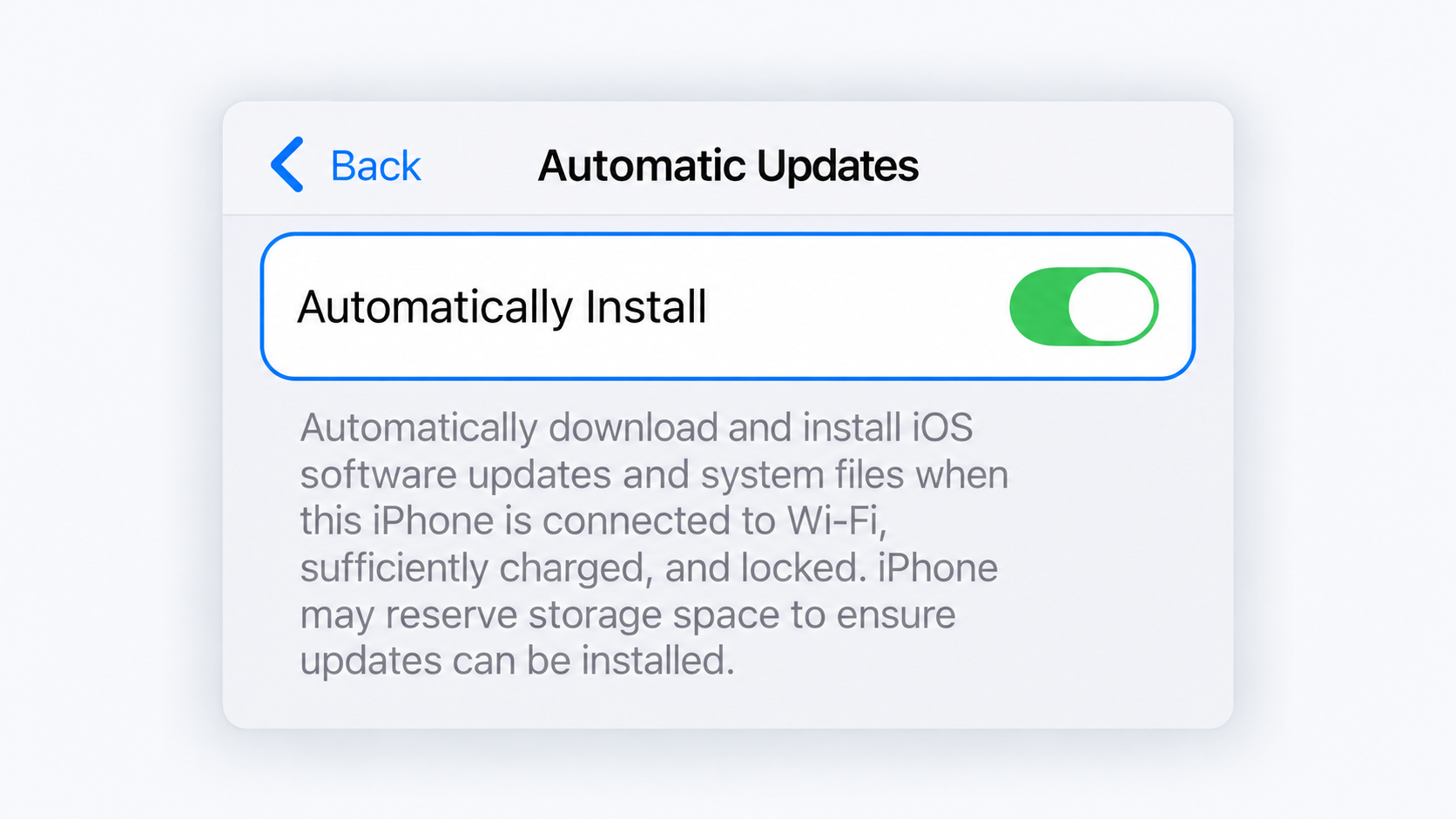
Is Automatically Install turned on for iOS updates?
Settings → General → Software Update → Automatic Updates
18
Software updates contain security fixes that protect your iPhone from known vulnerabilities. Automatically installing updates reduces the amount of time your device remains exposed after Apple releases a fix. Apple recommends keeping iPhone software up to date to receive the latest security protections.
Background Security Improvements
background-security-improvements
Essential
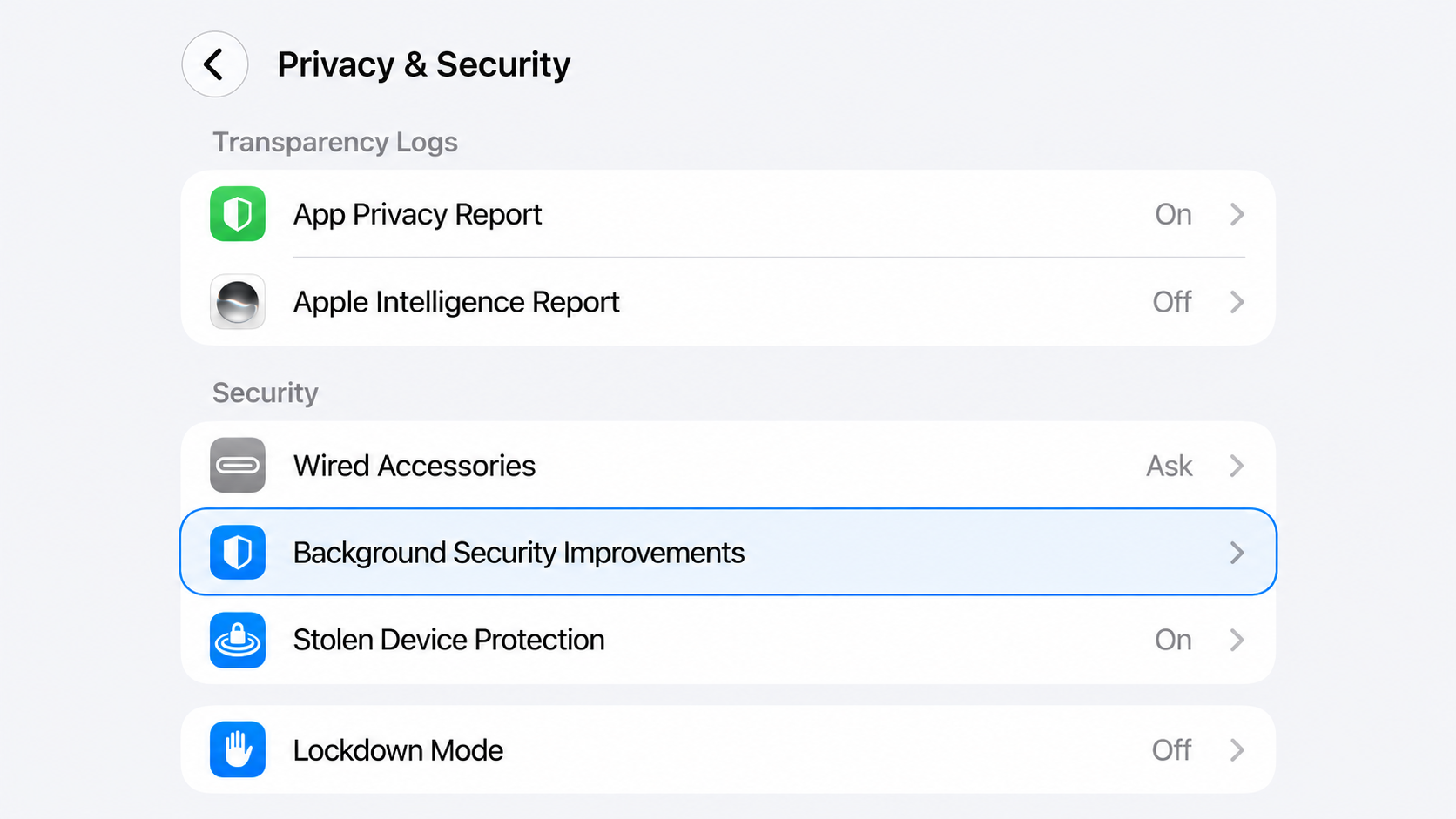
Is Automatically Install turned on for Background Security Improvements?
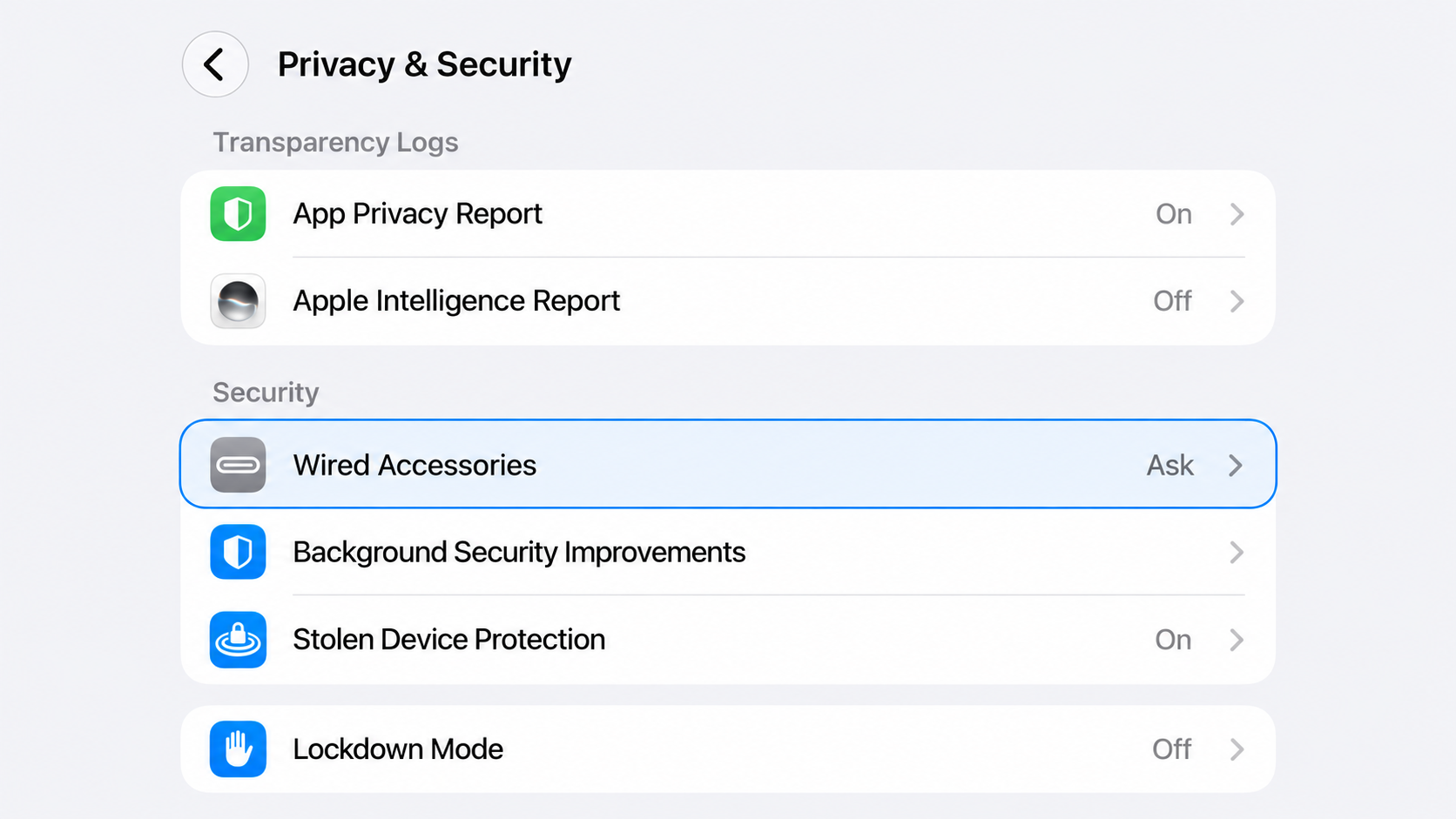
Settings → Privacy & Security → Background Security Improvements
19
Background Security Improvements allow Apple to deliver lightweight security fixes between normal iOS software updates. They can patch components such as Safari, WebKit, and other system libraries without waiting for the next full software update, reducing the time your iPhone remains exposed to certain known vulnerabilities.
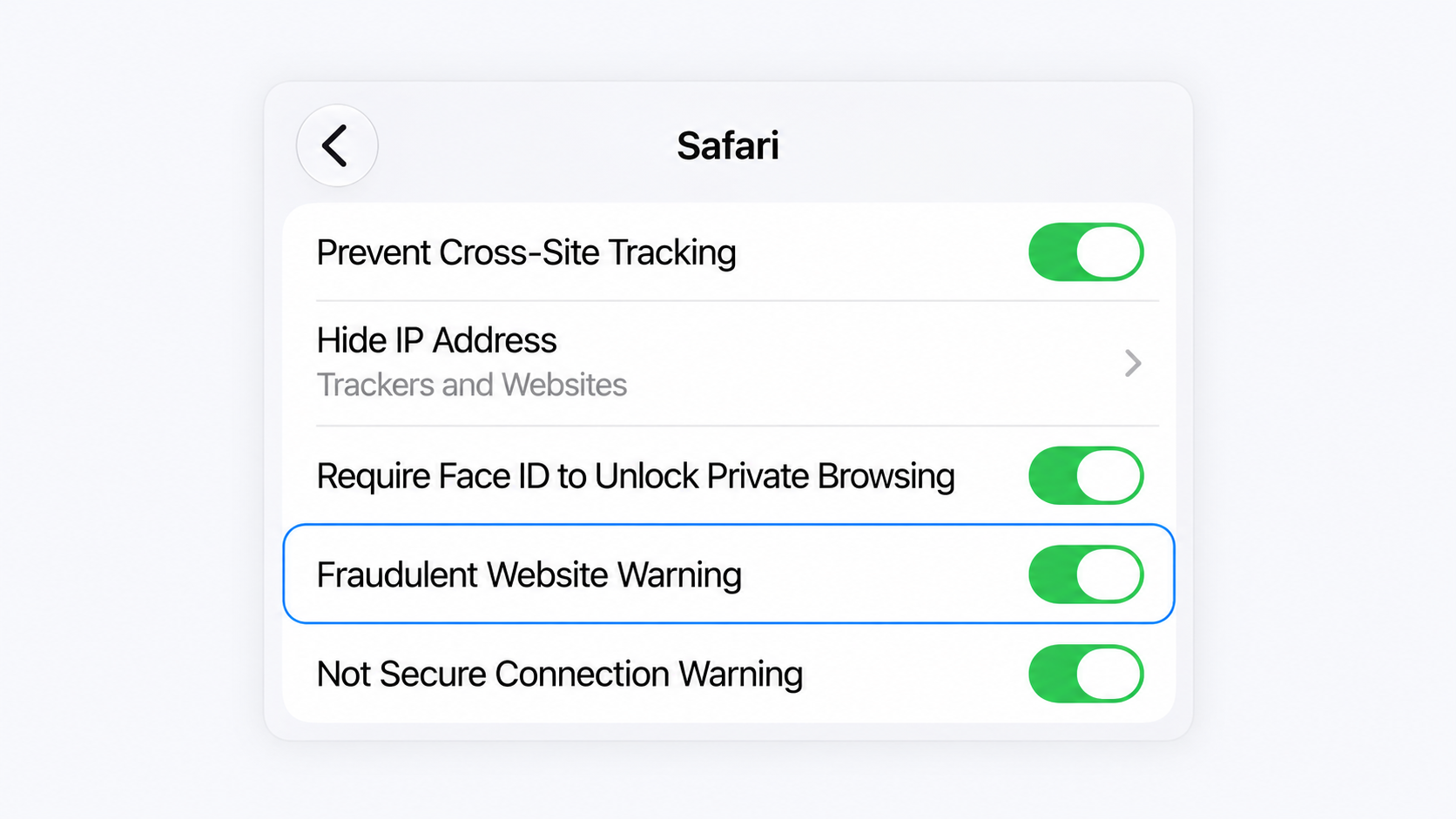
Fraudulent Website Warning
fraudulent-website-warning
Recommended
Is Fraudulent Website Warning turned on in Safari?
Settings → Apps → Safari → Fraudulent Website Warning
20
Fraudulent Website Warning helps identify websites that Safari suspects may be deceptive or malicious. This can reduce the risk of entering your Apple Account password, verification information, or other sensitive credentials into a phishing site. Apple’s current Safari guidance recommends keeping the warning enabled.